






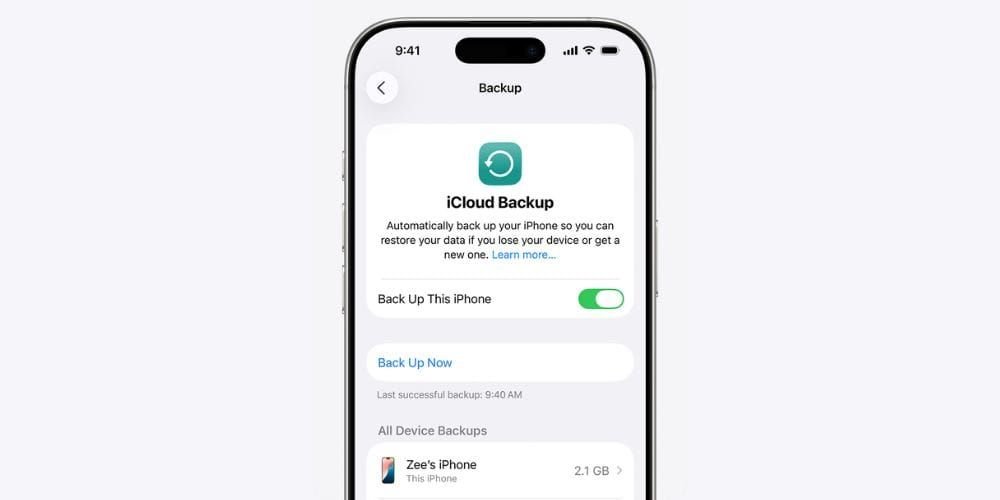
How To Back Up Your iPhone
Whether you’ve owned your iPhone for a while and accrued large amounts of data, or you’ve just picked up a new handset, knowing how to back up your photos, apps and data is a useful long-term skill. In this guide you’ll learn what to do, broken down in easy-to-digest steps.
If you’re on the hunt for a new iPhone after backing up your data, take a look through our dedicated iPhone collection.
Should I back up my iPhone to iCloud or a computer?
The first decision to make is whether to back up via iCloud or locally (on a Mac/PC). Each method carries its own considerations that will determine which is right for you.
iCloud
• Photos and other data are stored securely online
• Backups can be created and accessed from anywhere via Wi-Fi
• Backups are encrypted for added security
Locally (Mac/PC)
• Photos and other data are stored on the device
• Backups can be created and accessed from the device only
• Backups are encrypted, but this is off by default
Which should you choose?
Backing up your iPhone’s data to iCloud can be hugely beneficial, as you’re not limited to how much storage space is remaining on your PC or Mac. However, if your Internet connection isn’t particularly fast or stable, we wouldn’t recommend backing up to iCloud. Large amounts of data might take a long time to back up, and if the connection drops out, you won’t be able to access the backup online.
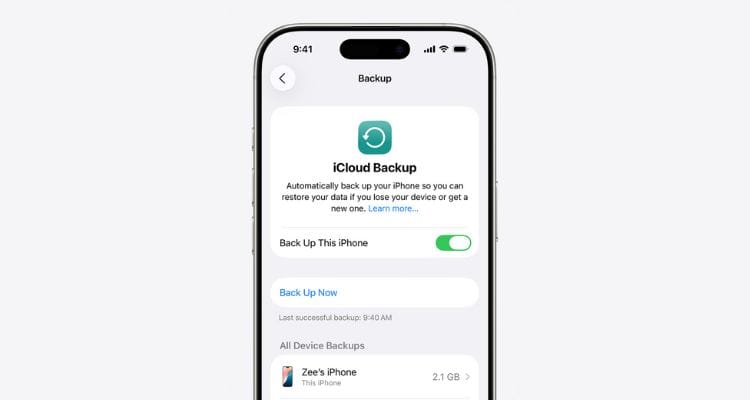
How to back up using iCloud
Before doing this, make sure iCloud is set up by going to Settings and tapping your name. Select ‘iCloud’, followed by any app or feature, then tap ‘Use on this device’.
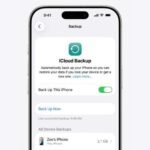
- On your iPhone, head to the Settings app
- Select your name > iCloud > iCloud Backup
- Activate ‘Back Up This iPhone’
a. To manually back up your iPhone, select ‘Back Up Now’
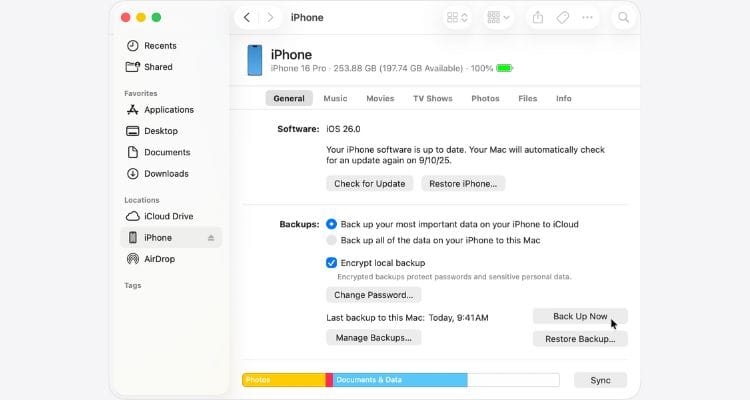
How to back up using a Mac
- Connect your iPhone to a Mac with a USB cable (you might need to use a Lightning cable if you own an iPhone 14 or older)
- Select your iPhone from the Finder sidebar on the Mac
- Click ‘General’ at the top of the Finder window
- Go to ‘Back up all of the data on your iPhone to this Mac’
- Protect your backup by selecting ‘Encrypt local backup’ and entering a password (this isn’t your Apple ID password, it should ideally be unique)
- Click ‘Back Up Now’
How to back up using a Windows device
- Use a USB cable to connect your iPhone to a PC
- Open iTunes (download this if not already installed) and click the iPhone button in the top-left corner
- Select ‘Summary’ and then ‘Back Up Now’
- Click ‘Encrypt local backup’ and create a password
Restoring a backup
Once you’ve backed up your iPhone, you can recover any data to a new device with a few simple steps.
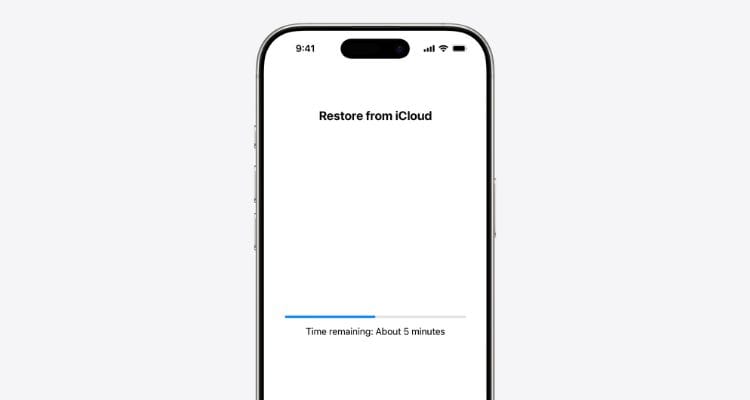
Restoring from iCloud
- Turn on the new iPhone
a. If you’ve already set it up, you’ll need to erase everything before progressing - Select ‘Set Up Manually’ and then ‘Restore from iCloud Backup’
Restoring from Mac or PC
- Connect your new iPhone to the Mac or PC with the backup
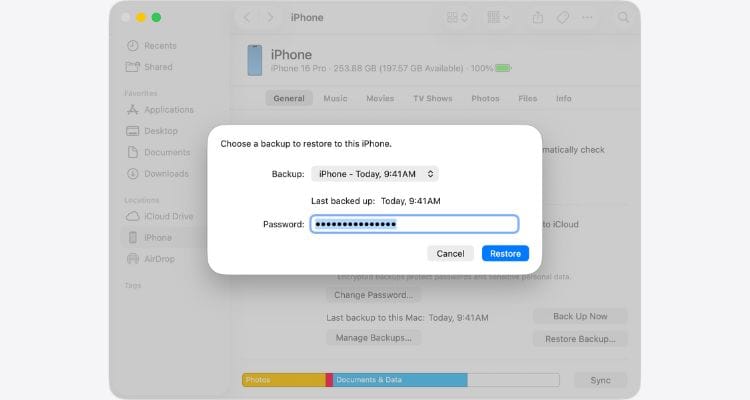
- On a Mac, select your iPhone from the Finder sidebar and click ‘Restore from this backup’ (click ‘Trust’ if prompted)
a. On a PC, open iTunes and click the iPhone icon in the top-left corner
b. Select ‘Summary’ and then click ‘Restore Backup’ - Pick the backup you made and select ‘Continue’
a. You’ll need to enter the password you created if the backup was encrypted
Conclusion
There you go; your iPhone’s data is now backed up and saved for a rainy day. If you want to learn more about managing your iPhone, including how to secure more storage space, take a look through our other expert guides.
iPhone backup FAQs
Can I back up my iPhone wirelessly?
Yes, you can do this by opening Finder on a Mac, selecting your iPhone and going to ‘General’. After that, click ‘Show this iPhone when on Wi-Fi’.
You can do the same thing on a PC; simply open iTunes, click the iPhone button in the top-left corner, and then ‘Summary’. Proceed by pressing ‘Sync with this iPhone over Wi-Fi’ in the Options menu.
How do I check and manage my iCloud storage?
You can review any backups you’ve made by going to the Settings app on your iPhone and tapping your name when it appears. Select ‘iCloud’ and tap the iCloud Backup option.
From here, you can manage the size of your backups by removing apps you don’t want to include.